Authentication
To interact with the OnceHub REST API and MCP Server, you must authenticate every request using a unique API Key. For your security, all communication must occur over HTTPS; requests made over plain HTTP will be rejected.
OnceHub utilizes industry-standard cryptographic practices to protect your credentials.
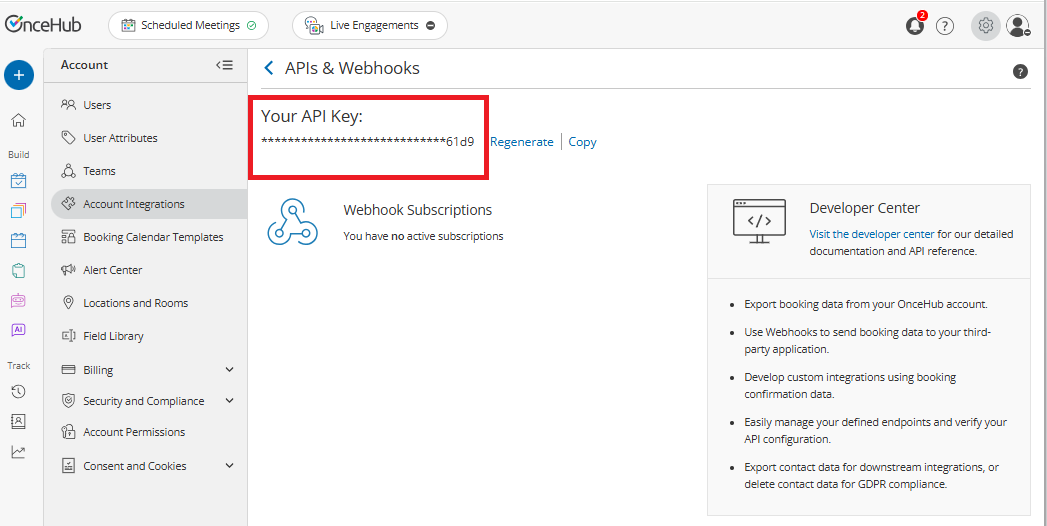
- Hashed Key Storage: OnceHub does not store API keys in plaintext. Because we only store a secure cryptographic hash, your key is displayed only once upon generation. It cannot be retrieved again by any user or by OnceHub Support.
- Multi-Key Management: You can maintain up to 25 active API keys per account to support:
- Environment Segregation: Use separate keys for staging and production environments to prevent accidental data leaks.
- Vendor Management: Assign unique keys to different third-party integrations to manage or revoke access independently.
- Zero-Downtime Rotation: Supporting multiple concurrent keys allows you to generate a new key and update your application before revoking the old one, ensuring continuous service.
Generate an API Key
-
Log in to your OnceHub account and click the gear icon located in the top-right corner of the page.
-
Select Account Integrations from the dropdown menu.
-
Select the APIs & Webhooks tile.
-
In the API Keys section, click the Create API key button.
-
In the pop-up, enter a descriptive API Key Name (e.g., "Production CRM").
-
Click Generate key. The API Key Created Successfully pop-up will appear.
noteYour API key is displayed here. For security reasons, it will only be displayed once.
-
Click Copy & close to copy the key to your clipboard and save it in a secure location.
Delete an API Key
If a key is compromised or no longer needed, you should delete it immediately to protect your data.
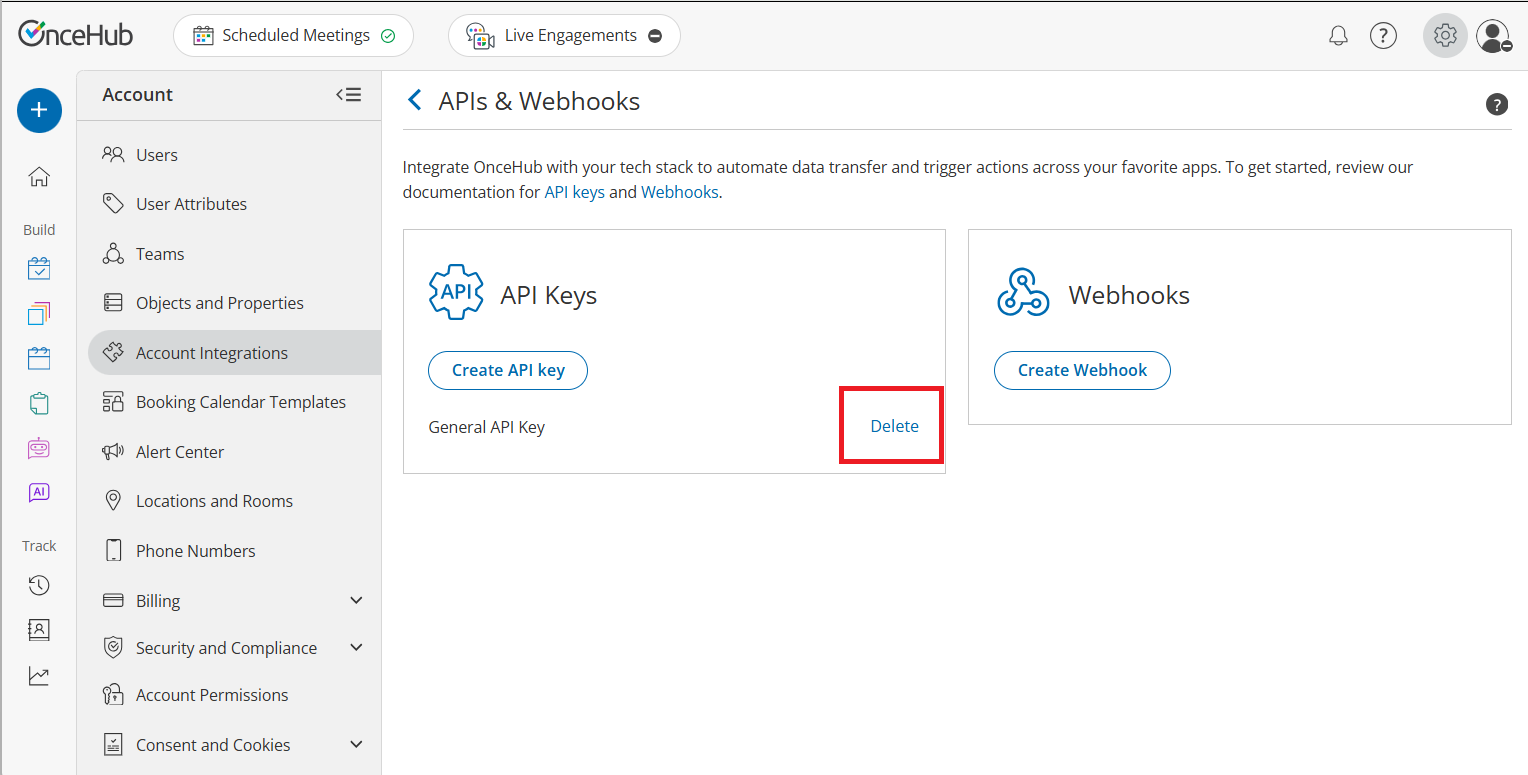
- Locate the specific key in the API Keys list.
- Click the Delete link next to the key name.
- A Delete Key confirmation pop-up will appear warning that any application using this key will immediately lose access.
- Click Delete key button to permanently delete the credential.
Using your API Key
Include your API key in the API-Key header of every HTTP request. If the key is missing or invalid, the API will return an error response to assist with troubleshooting. Learn more about error responses.
Example Request
GET /bookings HTTP/1.1
Host: api.oncehub.com
API-Key: your-api-key-here
Content-Type: application/json
Testing your API Key
Once you have your key, test it by making a request to our validation endpoint to confirm your connection is active. If the key is missing or invalid, the API will return a 401 Unauthorized error.
Security Best Practices
Your API key grants significant access to your account data. Protect it by following these standards:
- Server-Side Only: Never expose your API key in client-side code (JavaScript), public GitHub repositories, or mobile app binaries.
- Environment Variables: Store keys in secure environment variables rather than hard-coding them into your source code.
- Lost Keys: If you lose an API key, OnceHub Support cannot recover it for you. You must delete the lost key, generate a new one, and update your integration.
- Key Rotation: As a proactive security measure, rotate your API keys at least every 6 months. If you suspect a key has been compromised, rotate it immediately by generating a new one and deleting the old key to ensure uninterrupted service during the transition.